Article
How to Use ElevenLabs for YouTube Voiceovers
Turn a YouTube script into an ElevenLabs voiceover with a practical workflow for voice selection, pronunciation, editing, exports, and credit planning.
PrimeReview may earn a commission when you use qualifying links on this page, at no extra cost to you. Read our affiliate disclosure.
Overview
A useful YouTube voiceover begins with a clear script and a voice that suits the audience. This guide explains how to approach ElevenLabs Text to Speech and Studio, review the narration, and prepare a finished edit without wasting credits on avoidable revisions.
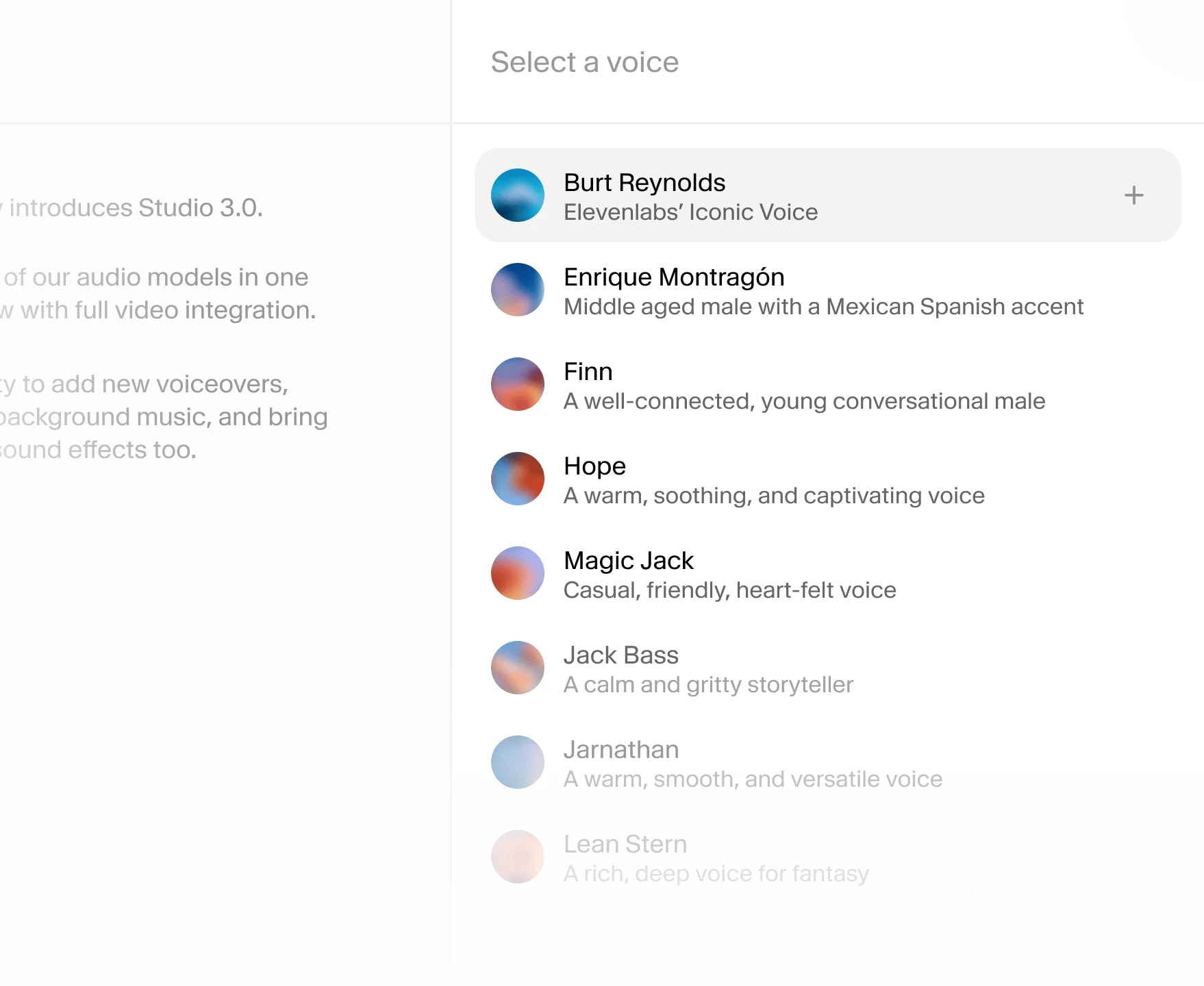
Table of contents
- In Short
- Choose Text to Speech or Studio for the right job
- Step 1: prepare a script written for listening
- Step 2: audition a voice with a representative passage
- Step 3: correct pronunciation before generating the full script
- Step 4: align the narration with the video
- Step 5: check captions and export settings
- Plan credits and commercial use before release
- A practical pre-release checklist
- FAQ
Quick explanation
In Short
- Use Text to Speech for standalone narration and Studio when the project needs a timeline with video and other audio.
- Compare voices with your own script before generating an entire episode.
- Fix names, numbers, and pacing before adding background music.
- Budget for revisions and verify commercial-use terms for monetized or client work.
ElevenLabs can turn a written script into a voiceover, but a convincing YouTube narration still depends on editorial choices. A tutorial needs room for the viewer to follow an action. A documentary needs changes in pace. A product explainer needs clear names and numbers more than a dramatic delivery.
This is a research-based workflow using official ElevenLabs documentation checked on October 14, 2026. It does not claim hands-on testing or promise a particular effect on views, audience retention, or channel revenue.
Choose Text to Speech or Studio for the right job
According to the ElevenLabs Text to Speech page, the service generates speech from text with selectable voices and models. Use it when you need a narration file for an editor you already know. For a broader feature overview, see our ElevenLabs review.
The official Studio page describes a timeline that combines voiceovers, video, music, sound effects, and captions. That makes Studio worth evaluating when those elements need to stay together during revisions. If your existing editor already handles the finished video well, keep it in the workflow and use ElevenLabs for the voice track.
| Your starting point | Workflow to evaluate |
|---|---|
| A short script and an existing video editor | Generate narration in Text to Speech, then import the audio |
| A narrated project with several audio layers | Organize the production in Studio |
| A recorded video that needs another language | Evaluate Dubbing rather than rebuilding the narration from scratch |
Step 1: prepare a script written for listening
Read the script aloud before generating anything. Replace sentences that only work on the page with language that is easy to understand on the first listen. Spell out an abbreviation the first time it appears, decide how prices and dates should be spoken, and remove instructions intended only for the editor.
For a screen-recorded tutorial, separate narration from visual directions. A note such as “zoom in on the menu” belongs in the editing brief, not in the spoken paragraph. Keep the script in sections so a small correction does not require rebuilding the whole episode.
A useful script brief includes the intended audience, approximate running time, tone, pronunciation notes, and the action shown during each section. These details also help you decide whether an AI voice is suitable or whether a human presenter would better communicate the subject.
Step 2: audition a voice with a representative passage
Do not choose a voice from its name or a polished promotional sample alone. Use a passage that includes the opening hook, one technical sentence, a brand name, and a transition. Listen for intelligibility and consistency before judging how impressive the voice sounds.
Compare a small shortlist using the same passage. A warm, conversational delivery may suit a beginner tutorial; a more restrained narrator may suit an analytical explainer. The right choice depends on the script and audience, so avoid treating one voice as universally best for YouTube.
The featured image above is an official Studio product visual showing voice selection. It illustrates the interface concept; it is not a recommendation to use an iconic or named voice without checking its specific access and licensing terms.
Step 3: correct pronunciation before generating the full script
Check product names, surnames, URLs, acronyms, measurements, and strings of numbers. A smooth sentence can hide an incorrect pronunciation, particularly when the listener is unfamiliar with the subject.
ElevenLabs documents pronunciation dictionaries in its Studio guide. Supported pronunciation methods depend on the model, so check compatibility before relying on phonetic tags. Where appropriate, try an ordinary wording change, such as expanding an abbreviation, and keep a record of the spelling used in the approved script.
Generate a short correction sample first. Once names and terminology are settled, carry those choices through every section rather than discovering inconsistent readings at the final export.
Step 4: align the narration with the video
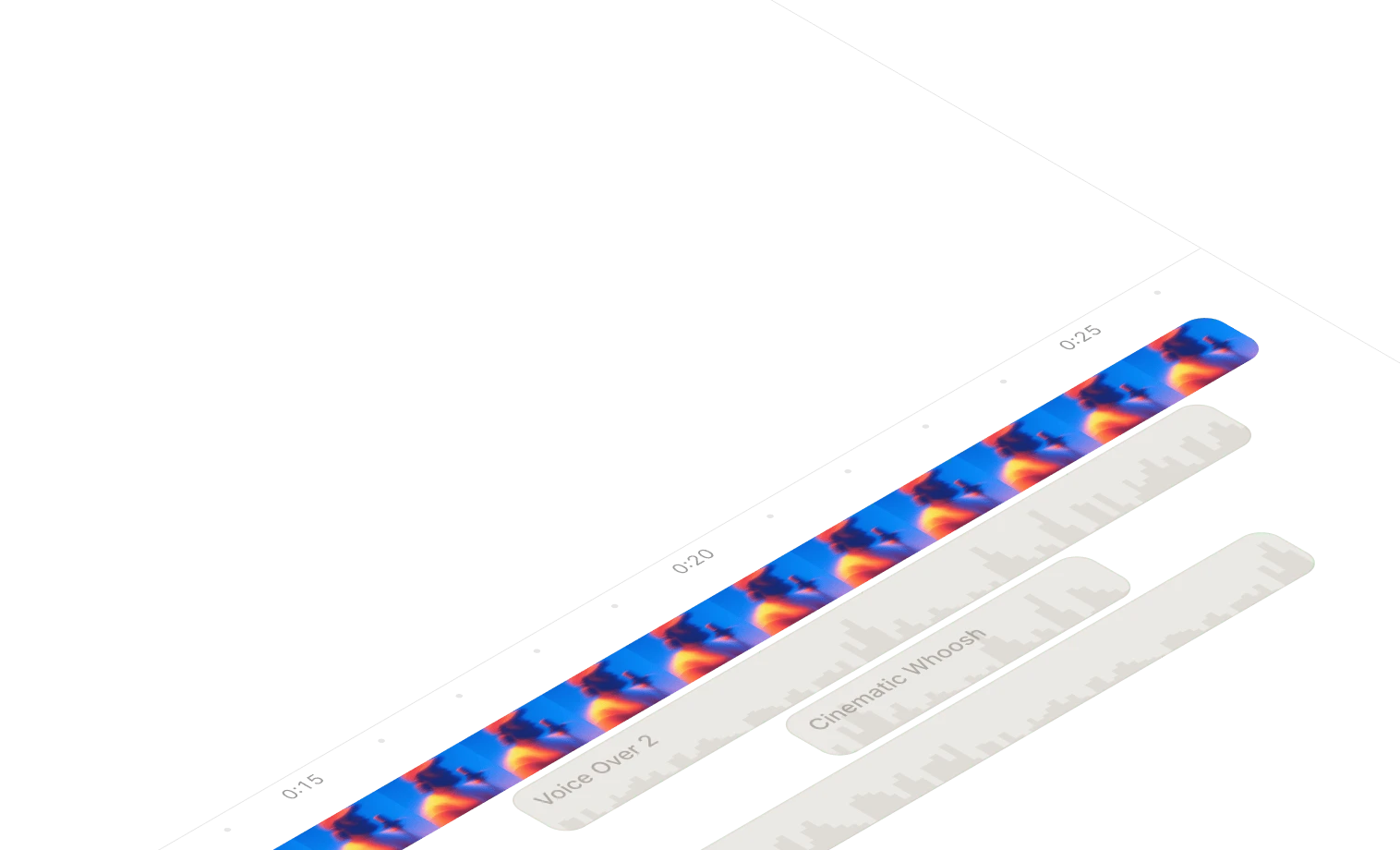
Official product illustration from ElevenLabs Studio, retrieved October 14, 2026.
Build the edit around meaning, not simply the length of the audio file. A viewer needs time to see a setting change or compare two items. If narration reaches the next instruction before the action is visible, shorten the explanation or adjust the edit rather than making the entire voice track unnaturally fast.
Review joins between sections with headphones. Listen for abrupt shifts in loudness, pace, or delivery. Keep a copy of the approved narration before adding music so you can identify whether a later problem comes from the speech or the mix.
Add background music only after the words are clear. Listen on a small speaker as well as headphones; a mix that sounds balanced in one setting can obscure the explanation in another.
Step 5: check captions and export settings
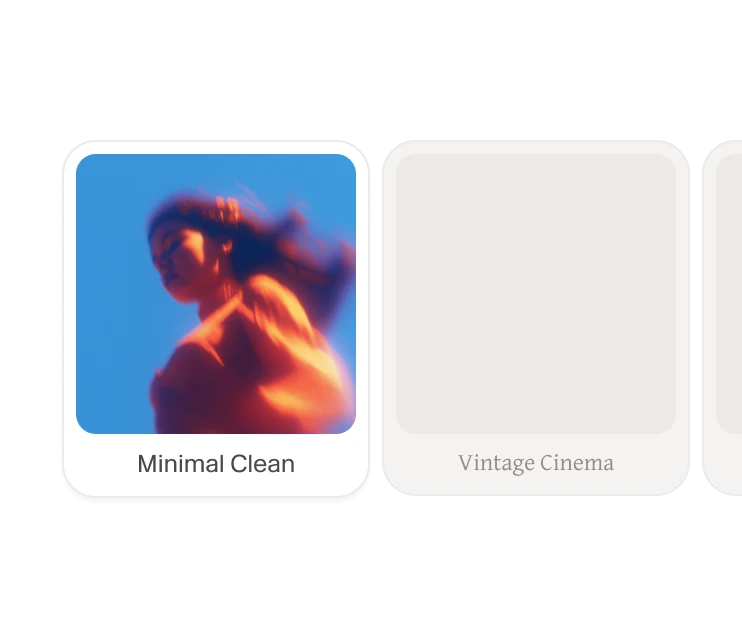
Official caption-style product illustration from ElevenLabs Studio. The image shows template choices, not a completed caption accuracy test.
Captions need their own review. Check names, punctuation, line breaks, and whether the caption appears at the right moment. A correct voiceover does not guarantee a correct transcript, and a visually attractive caption style does not solve readability problems.
The Studio export documentation lists MP3 and WAV audio exports and eligible video exports. It also explains that export quality depends on the plan and that free-plan video exports include a watermark. Confirm the settings for your project before promising a particular deliverable to a client.
Keep the final script, approved narration, caption file, and project notes together. A later correction is much easier when the original choices are recorded.
Plan credits and commercial use before release
The ElevenLabs pricing page, checked October 14, 2026, describes a shared credit balance across products. Estimate your normal production workload and leave room for rewritten sections, alternate intros, and pronunciation fixes. An allowance for generated speech should not be treated as a guaranteed amount of finished video.
For example, a ten-minute video may involve multiple samples and discarded versions before its ten-minute narration is approved. Record the usage for one representative episode, then use that figure as a planning starting point. If you also generate music, effects, or dubs, account for those separately.
ElevenLabs describes paid-plan commercial rights and free-plan non-commercial conditions on its Text to Speech page. Verify the applicable terms for the voice and the generation date before releasing monetized or client content. If you use a cloned voice, confirm the speaker’s permission and the intended uses.
A practical pre-release checklist
Before publishing the video, confirm that:
- the narration matches the final script and the actions on screen;
- names, numbers, and specialist terms are spoken correctly;
- section transitions do not change delivery unexpectedly;
- captions are readable and accurately timed;
- music does not compete with the explanation;
- the export meets the intended production requirements;
- the audio and selected voice have the necessary usage rights.
Start with one complete, representative video. That will tell you more about workflow fit than generating dozens of disconnected demo lines. Once the process works, save the script brief and review checklist for the next episode.
Common questions
Frequently asked questions
Can I use ElevenLabs for YouTube voiceovers?
Yes. ElevenLabs offers script-to-audio generation and a Studio workflow for narrated video. Review pronunciation, pacing, the selected voice's terms, and the applicable commercial license before releasing a video.
Should I use Text to Speech or Studio?
Text to Speech suits a standalone narration clip that you will edit elsewhere. Studio suits projects that need narration, video, music, and captions organized on a timeline.
Can I use free-plan audio on a monetized channel?
ElevenLabs describes the free plan as non-commercial and paid plans as including commercial rights, subject to its terms. Use the applicable paid-plan license for monetized production; do not assume upgrading later changes the rights on earlier free-plan generations.
How do I make an AI voiceover sound less rushed?
Shorten overloaded sentences, make punctuation reflect the intended delivery, and review transitions between sections. Try one change at a time on a short passage so you can tell which adjustment helped.